

A clearer way to plan
Planning has a refreshed interface in DetectBuddy 1.1.0, with location search, a plan date, preparation and settings together at the top. The drawing tools let you work with an Area, Pin or Route, while the bottom panel keeps distance, area and duration in view.
Use Planning before your next outing to explore the landscape and keep the useful details in one place. Where coverage and access allow, you can add LiDAR terrain to your view.
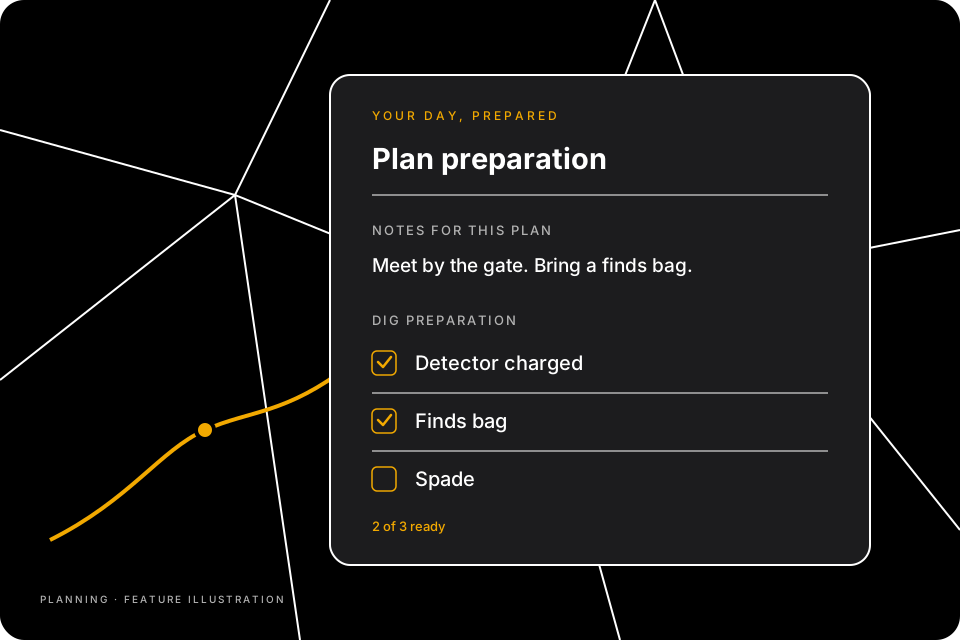
The artwork above is a feature illustration of notes and checklists, rather than a screenshot of the app.
Keep useful notes with the plan
- Open your plan in Planning. Choose the document icon at the top, labelled Plan preparation.
- Choose Notes. Add access details, meeting arrangements, research reminders or anything useful for the outing.
- Choose Done. Save the preparation you have entered. If you are creating a new plan, use Save Plan to keep the plan itself.
These are notes for the whole plan. A Pin on the map is a separate location-specific note. Use the plan notes for an overall reminder, and map pins when the place itself matters.
Build a checklist for the day
- Open Plan preparation and choose Checklist. Use Add item to make your own equipment or preparation list.
- Start with the essentials. For example: detector charged, pinpointer charged, spade and finds bag. The app includes a Dig essentials template as a starting point.
- Tick items off as you prepare. The checklist shows how many items are ready. You can reorder or remove items to suit the outing.
- Choose Done. Keep the checklist with the plan, then save a new plan if needed.
The preparation indicator helps you see when items still need attention, so you can return to the list before heading out.
Reuse a list next time
Choose Save as template to keep a useful checklist for another plan. Later, choose Use template to copy the item names into a different plan.
Templates start with all items unchecked, so each outing has its own preparation progress. Applying a template to a plan with an existing checklist asks before replacing it. Your notes for the plan are kept.
Plan notes and checklists are stored locally with your DetectBuddy data. Review any exported or shared plan before sending it if it includes access details or a location you want to keep private.